
Stop fighting HEIC files.
Ever AirDropped a photo from your iPhone to your Mac, or saved one from the Photos app, and ended up with a HEIC file that a website, form or tool won’t accept? Dropfix watches any folder you choose. When a new HEIC file arrives it’s converted to the format and size you preset, or Dropfix can ask you first, every time.
Free to download, with Dropfix Pro as a one-time unlock. Requires macOS 13 Ventura or later. Everything happens on your Mac: Dropfix has no account, no analytics and never sends your photos anywhere.
How it works
Pick a folder, set a rule, forget about it
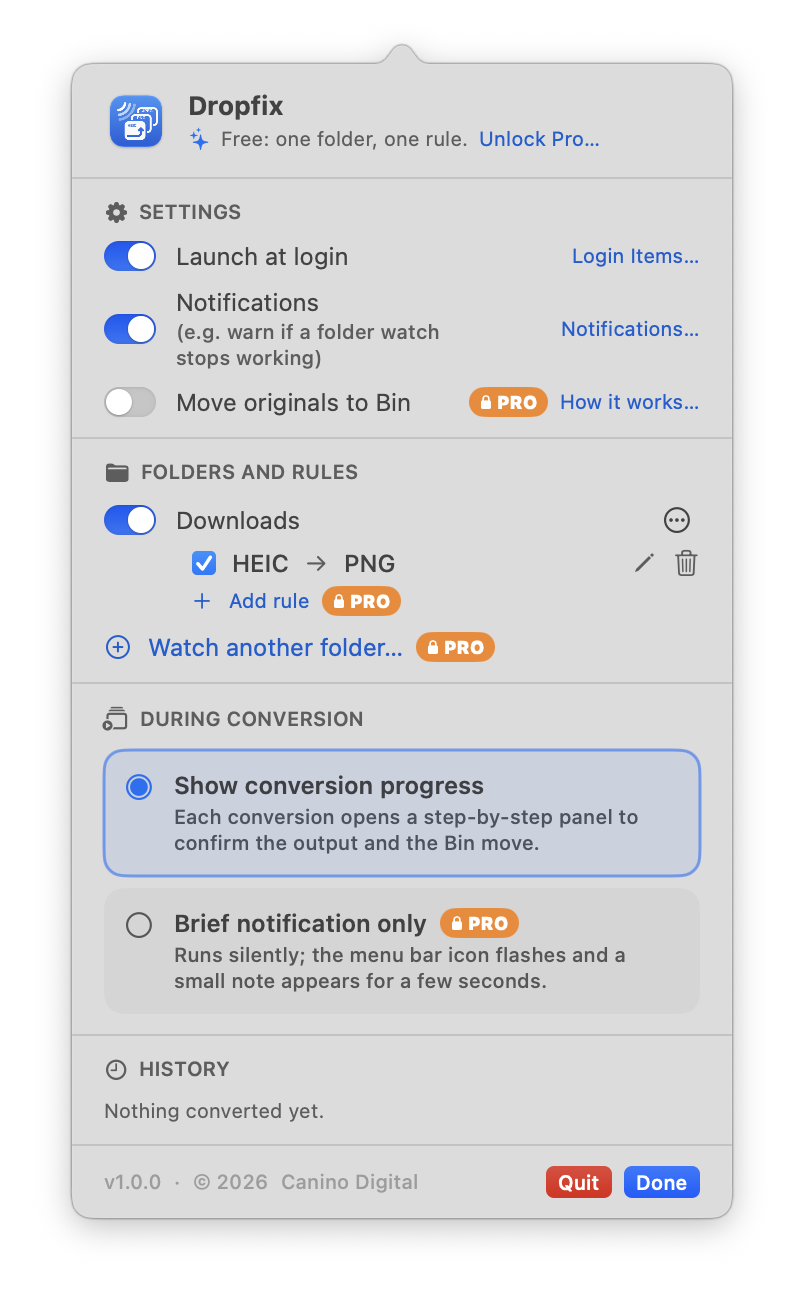
Dropfix lives in your menu bar with no Dock icon and no window to manage.
- Choose a folderDownloads, Desktop, or any folder you like. Dropfix Pro watches as many as you want.
- Add a ruleEach folder gets rules such as HEIC to JPEG at High quality, or PNG to JPEG at Low for small files.
- Drop a file inDropfix waits for it to finish arriving, then converts it. The result is written next to the original, never over it.
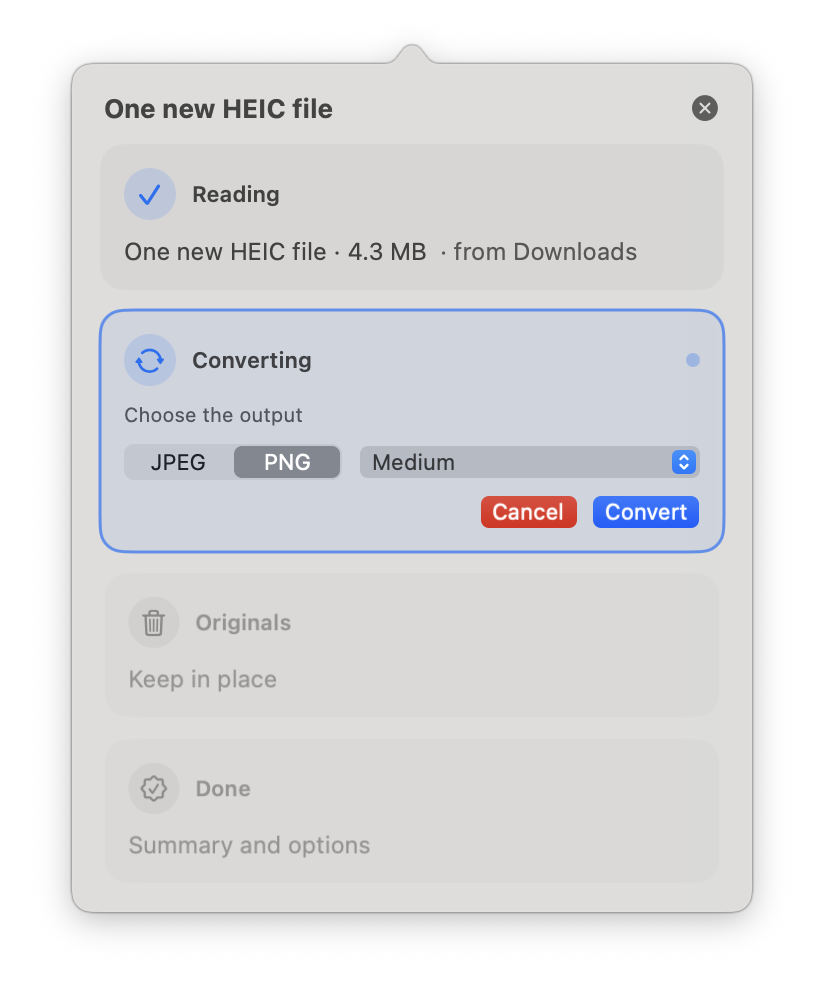
- Confirm, or don’tA step-by-step panel shows each conversion, or switch to Brief notification only and let it run silently.
A look inside
Small, and out of the way
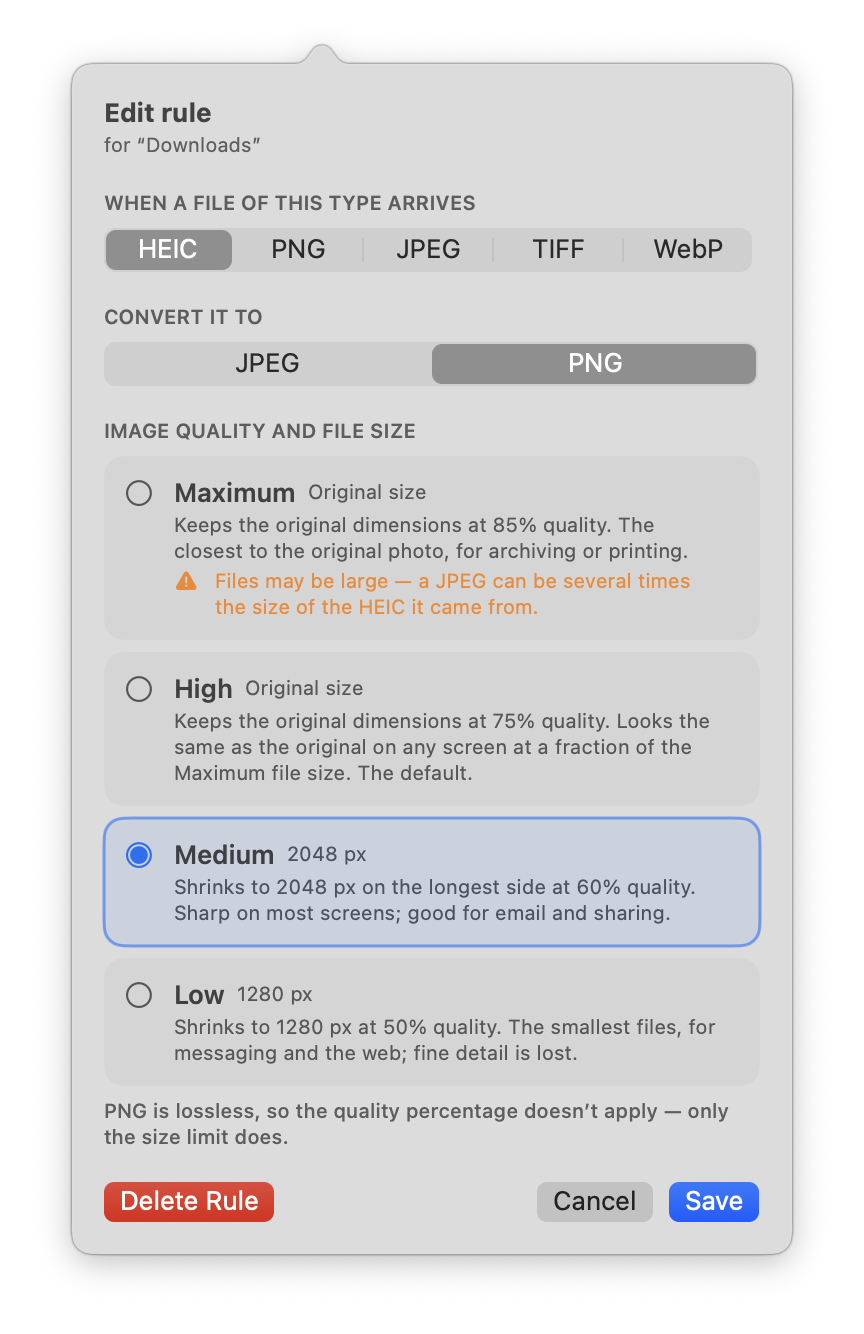
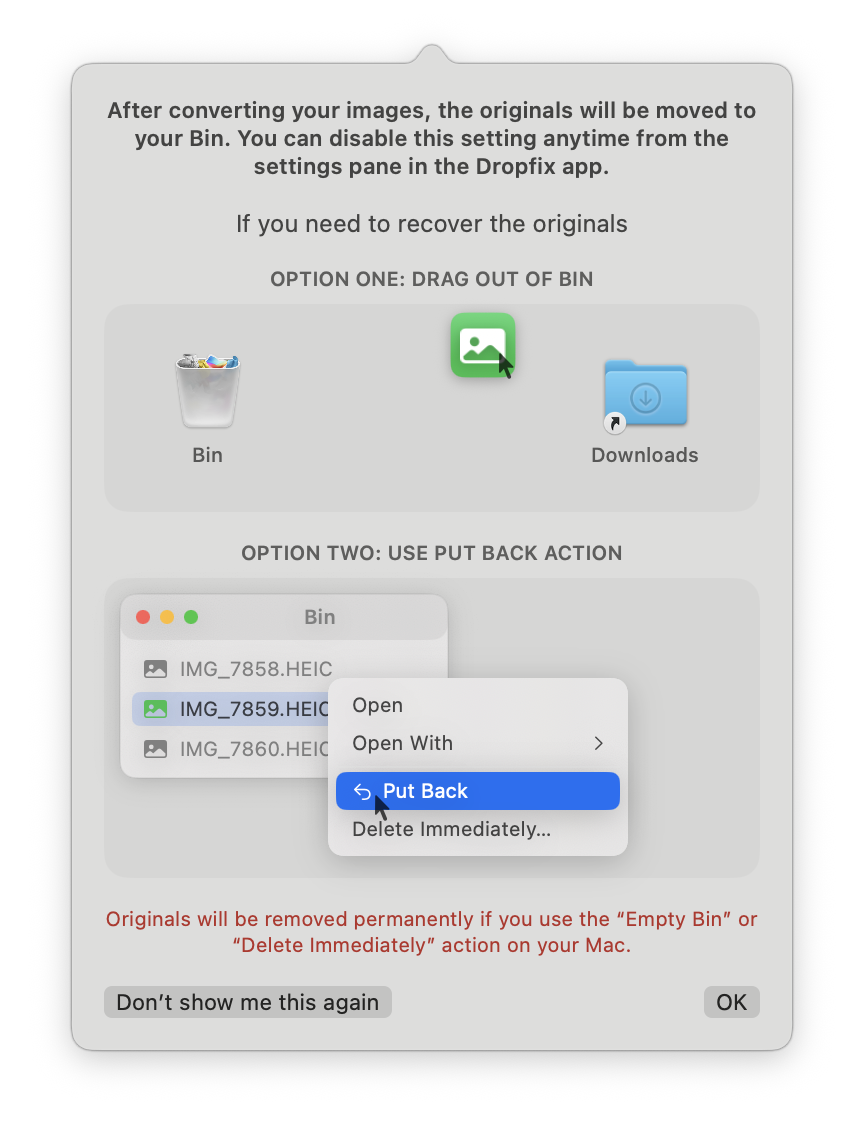
Everything lives in a menu bar panel. These are the real screens.
Use cases
Where it earns its keep
Anywhere iPhone photos meet a system that wants JPEG.
AirDrop from your iPhone
AirDrop lands in Downloads as HEIC. Put a rule on Downloads and every photo you send yourself is a JPEG by the time you look for it.
Uploading to websites and forms
Listing photos for a rental or marketplace, a job application, a CMS, a client portal: many only take JPEG or PNG. Convert first and the upload just works.
A drop folder for the right format
Make a folder called “To JPEG” and give it a rule. Drag any image in and it comes out in your preferred format and size.
Smaller files for email and messaging
The Low preset shrinks photos to 1280 px at 50% quality, so a batch of holiday photos fits in one email.
Screenshots and web images
PNG screenshots to JPEG for sharing, WebP downloads to PNG for editing. Dropfix handles PNG, JPEG, TIFF and WebP as well as HEIC.
Photos exported from the Photos app
Exporting originals from Photos on the Mac gives you HEIC. Export into a watched folder and the JPEGs appear beside them.
Formats and sizes
Your format, your size
Each rule pairs one input format with one output and a size.
Formats
In: HEIC, PNG, JPEG, TIFF, WebP. Out: JPEG or PNG.
Quality presets
Maximum: original size, 85% quality, for archiving or printing.
High: original size, 75% quality, the default. Looks the same on any screen at a fraction of the file size.
Medium: 2048 px, 60% quality, for email and sharing.
Low: 1280 px, 50% quality, the smallest files.
Dropfix never upscales, and PNG stays lossless.
Metadata kept
EXIF, GPS location, colour profile and rotation carry across to the converted file.
Originals are safe
Converted files never overwrite anything. Optionally the originals move to the Bin, where they can be recovered until you empty it.
Rules never chain
Files Dropfix makes don’t trigger another rule, so HEIC to PNG and PNG to JPEG can share a folder without looping.
Convert what’s already there
Point Dropfix at a folder full of HEIC files and choose Convert existing files here. It always confirms before any originals move.
Privacy
Everything stays on your Mac
An app that watches your folders has to earn trust, so here is exactly what Dropfix does.
No account, no analytics
Dropfix has no sign-in, no usage tracking and no crash reporting. There is nothing to opt out of.
Your photos never leave your Mac
Conversion uses macOS’s own image libraries. The only time Dropfix talks to anything is to confirm a Dropfix Pro purchase with the App Store.
Only the folders you choose
Dropfix sees only the folders you pick in its folder chooser, and only acts on files that match a rule you set.
In plain English
The full Dropfix privacy policy is short, and written to be read.
Questions
Frequently asked
More in the full FAQ.
What is a HEIC file, and why can’t I upload it?
HEIC is the format iPhones and iPads use for photos. It makes smaller files than JPEG at the same quality, but many websites, forms, CMSs and older tools only accept JPEG or PNG, so a HEIC upload is refused or shows as a blank image. Dropfix turns HEIC files into JPEG or PNG the moment they arrive on your Mac.
How does Dropfix work?
You choose folders to watch, such as Downloads or Desktop, and add a rule to each, like “HEIC to JPEG, Best quality”. When a file matching a rule lands in that folder, Dropfix waits for it to finish arriving, then converts it. The converted file is written next to the original. Files Dropfix makes never trigger another rule, so rules can’t loop.
Does it convert automatically or ask me first?
Your choice. By default a small panel opens from the menu bar icon showing the stages, Reading, Converting, Originals and Done, so you can confirm the output and decide what happens to the originals. With Dropfix Pro you can choose Brief notification only instead, and conversions run silently with a short note you can click to reveal the files.
What happens to the original photos?
Nothing, unless you ask. Converted files never overwrite anything. You can have the originals moved to the Bin, which is Finder’s own Move to Bin, so they can be recovered until you empty it. The first time, Dropfix shows how to get them back. Doing that automatically, without confirming each time, is part of Dropfix Pro.
Which formats does it handle?
In: HEIC, PNG, JPEG, TIFF and WebP. Out: JPEG or PNG. Each rule picks one input format and one output.
Can I control the size and quality?
Yes. Each rule has a quality preset: Maximum (original size, 85% JPEG quality), High (original size, 75%, the default), Medium (2048 px on the longest side, 60%) or Low (1280 px, 50%). PNG is lossless, so for PNG only the pixel limit applies. Dropfix never upscales.
Get Dropfix
Convert the next one automatically
Free on the Mac App Store. Dropfix Pro is a one-time unlock inside the app, no subscription.
Dropfix is an independent app and is not affiliated with or endorsed by Apple. macOS, AirDrop and Photos are trademarks of Apple Inc. HEIC is a format of the MPEG group. Dropfix privacy policy · Dropfix FAQ